Crossref members register around 37,000 records daily. All this metadata is openly shared with the global scholarly community through our free APIs. We receive over two billion calls to our API each month, signalling its use by hundreds of tools and services worldwide, supporting the discovery and assessment of scholarly metadata. As part of a new series in our blog, we will spotlight the diversity of tools and integrations that rely on Crossref metadata to serve the scholarly community. In this initial post, we chat to Luca Foppiano, the developer and maintainer of Grobid1, to learn about how Grobid uses Crossref metadata to improve the extraction and enrichment of bibliographic information from scholarly PDFs.
On behalf of the Nominating Committee, I’m pleased to share the slate of candidates for the 2026 board election. Every active member organisation is invited to submit a ballot to elect the incoming board class.
We’re providing a summary of the board’s July 2026 meeting. The July board meeting is our only in-person meeting. The board gathers for two days of strategic thinking and long-range planning, as well as conducting annual board business. This year, we focused on allocating surplus funds we have on hand to invest in a three-year project to redesign the content system. In a related discussion, we decided to lower content registration fees starting in 2027 because we’ve had a demonstrated history of generating surpluses, exceeding what we need to run Crossref. We also discussed the board structure, as part of our regular review of stakeholder governance. And we conducted annual board business, such as approving the audited financial statements and reviewed our risk register and mitigation plans.
The resolutions are available on the dedicated section of our website, which also lists the members of the Board and offers further information about our governance.
We also managed to squeeze in watching a World Cup game over dinner.
Starting today, funder names deposited in Crossref metadata without an identifier will be matched to ROR IDs, to support an open and connected Research Nexus. Funding information is an increasingly important part of the scholarly record. The improved matching strategy supports researchers, funders, institutions, and meta-researchers, who rely on that information to understand how research is supported and what outcomes that support produces.
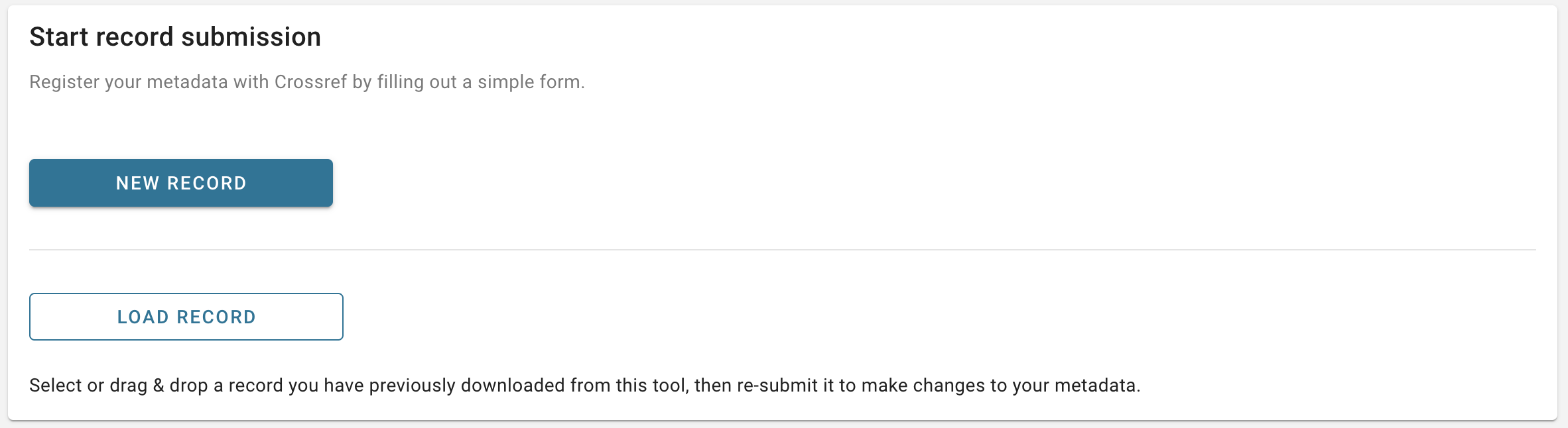
The new Metadata Manager tool (previously known as the record registration form) can be used to deposit metadata for your records. You do not need any knowledge of XML to use it.
First, select the type of record you wish to register. You have the following options (though we plan to add more in future):
Journal Article: Register metadata for a journal article. A journal ISSN is required to register articles using this tool.
Book / Book Chapters: Register metadata for a monograph, edited book, reference book, or other type of book. You can also register chapter-level DOI records and include book series metadata.
Report / Working Paper: Register metadata for a report or working paper. Report records can contain report series metadata.
Dissertation: Register metadata for a dissertation or thesis.
Grant: Register metadata for a grant, award, fellowship, or similar type of research funding.
Post-Publication Update: Register metadata for a retraction notice, correction, or other post-publication update to a published journal article. A journal ISSN is required to register post-publication updates using this tool. You’ll also need a DOI for an update policy page, but it is not necessary to fully implement the Crossmark service.
After selecting the appropriate record type, enter the metadata associated with your record in the corresponding fields. Some fields are required to be filled out in order to submit your record, while others are optional. You can find links to our documentation in the form for more information on what each field means.
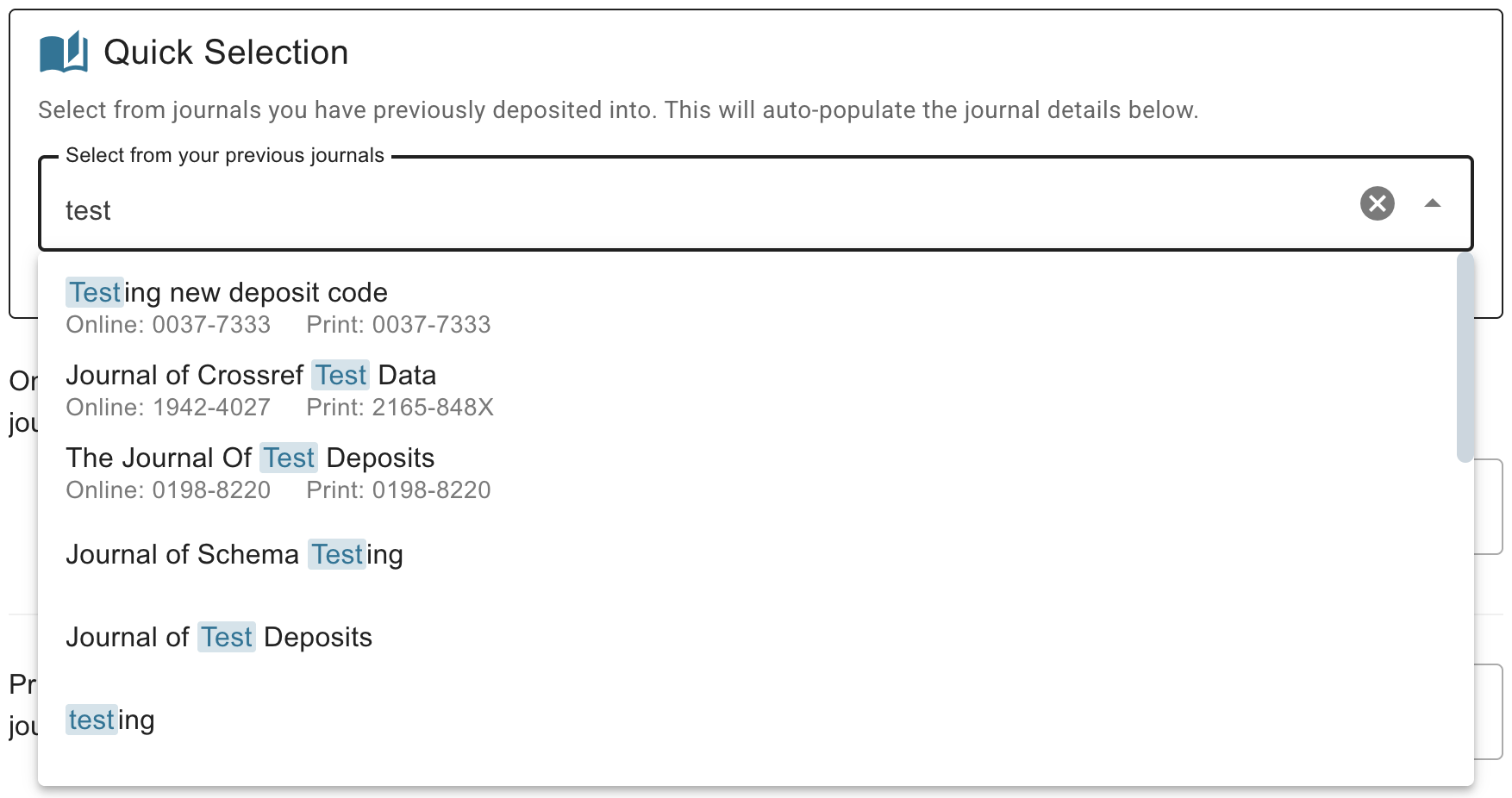
Journal article and post-publication update metadata also includes some information on the journal and, optionally, the issue and/or volume that the article was published in. To help avoid common errors with journal titles, you can auto-fill the journal metadata by choosing from a list of titles you have previously deposited into. You can search the list by title or by ISSN. Note that an ISSN is currently required to use the new Metadata Manager for registering journal content.
Submit your record
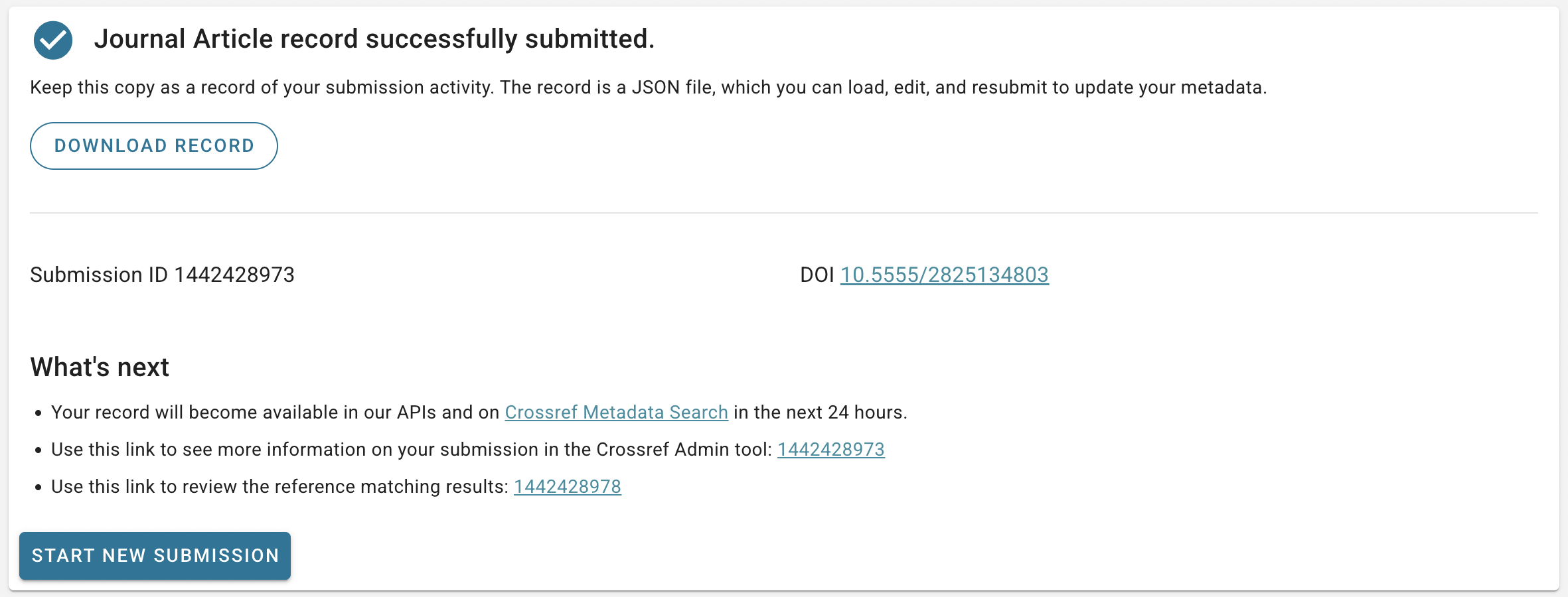
After filling out the required fields as well as any optional metadata you want to deposit, check that everything looks correct and then click Submit at the bottom of the form. The submission will be made immediately and a success message will appear on the screen.
From the success page, you can click through to more information about your submission in our Admin tool, or start another submission right away. If you have registered a journal article, you can choose to repeat the process for another article in the same journal and/or journal issue, which will pre-fill the form with the appropriate metadata so you don’t have to re-enter it.
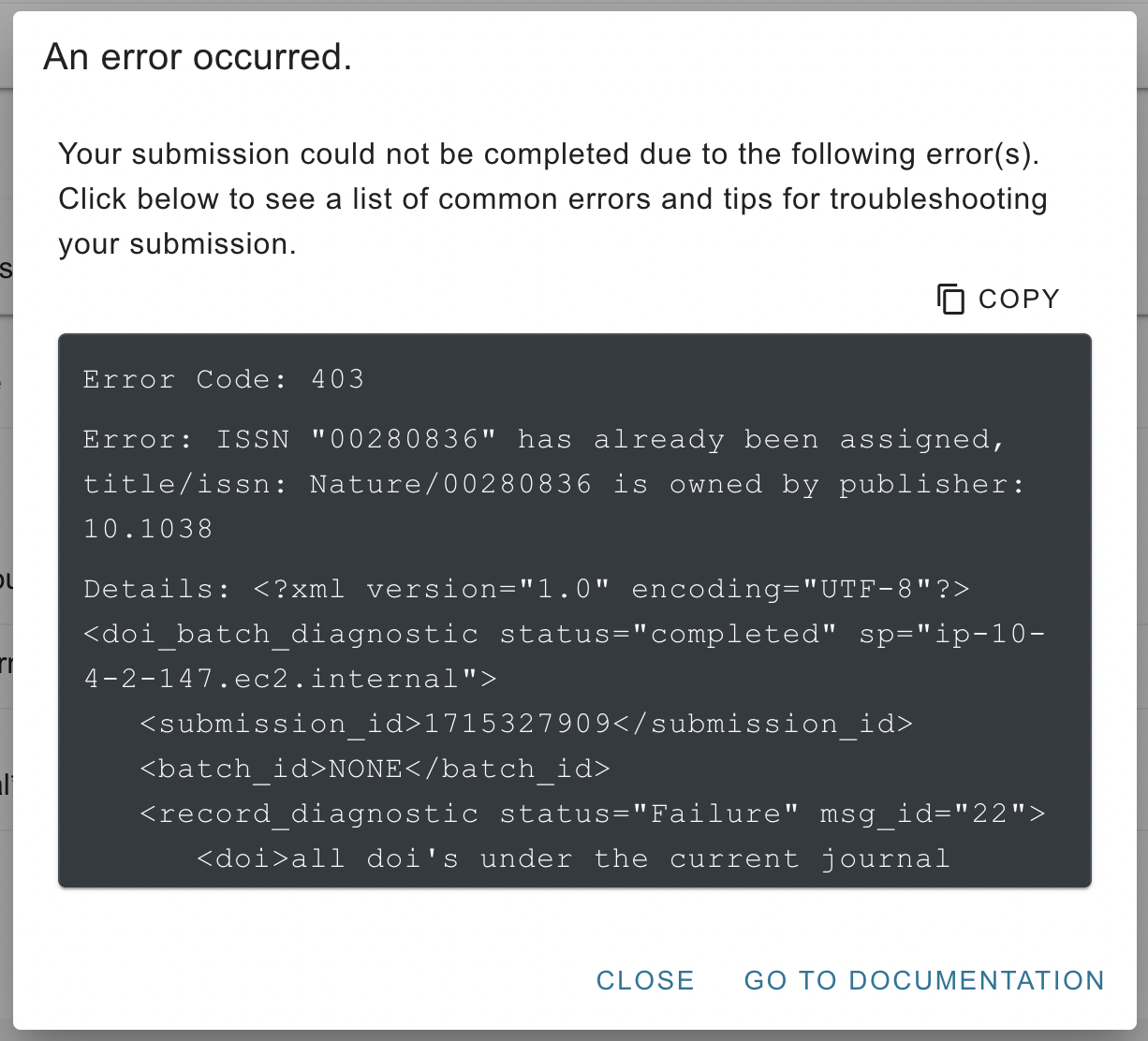
If there is a problem with your submission, you will see an error message appear instead of the success page. Go to the documentation for tips on how to troubleshoot common errors from our deposit system.
Edit an existing record
Metadata can change over time, and Metadata Manager allows you to update your records to reflect this.
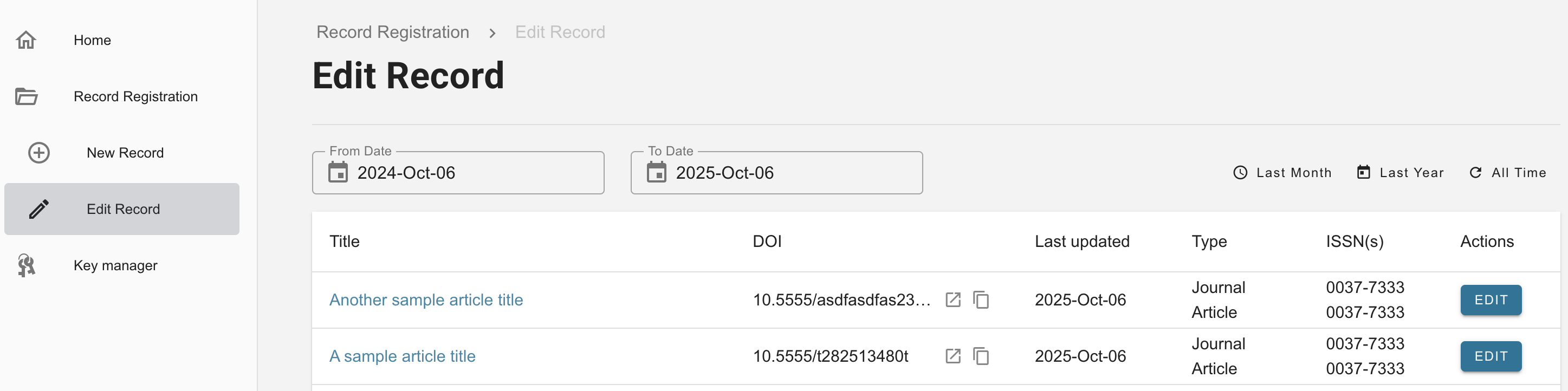
Choose Edit Record from the landing page or the sidebar navigation to see a list of the journal article and grant records you have previously registered using this tool, the web deposit form, or the deprecated legacy Metadata Manager.
You can search for any DOI, scroll through the list of previously registered records, or filter it by the date when the record was last updated. Find the record you are looking for and click Edit to access a form page with the record’s current metadata filled in. Simply make any changes and submit the record again to register the updated metadata. Note that post-publication update metadata can not currently be updated using this tool for technical reasons.
Page maintainer: Lena Stoll Last updated: 2026-August-12